

Instructions for Use Switching ON/OFF the InstrumentChanging the Operating State (Remote Electronic Switch)
Switching ON/OFF the InstrumentChanging the Operating State (Remote Electronic Switch)Changing the Operating State (Remote Electronic Switch)
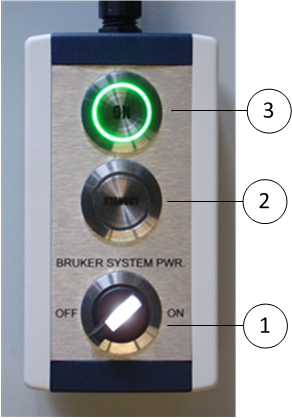
Change the operating state of the instrument at the Remote Electronic Switch as follows:
You can switch interactively between the operating states STAND-BY and ON using the ParaVision software. Proceed as follows:
- 1.
- Click the ON/OFF button (1) in the ParaVision control bar to switch between STAND-BY and the operating state ON.
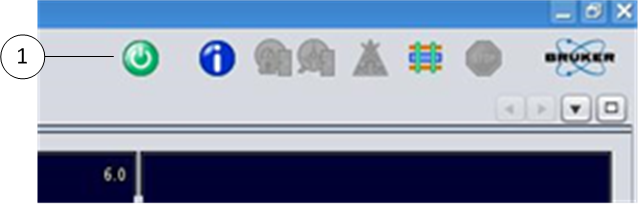
ON/OFF button in the ParaVision control bar.